Twitch Clip Generator AI
Make stream intros, BRB loops, scene transitions and highlight B roll from a few words. Wide 16:9, ready for OBS.
- No app needed
- See the price first
- No watermark
- Tall, square or wide
Prompt
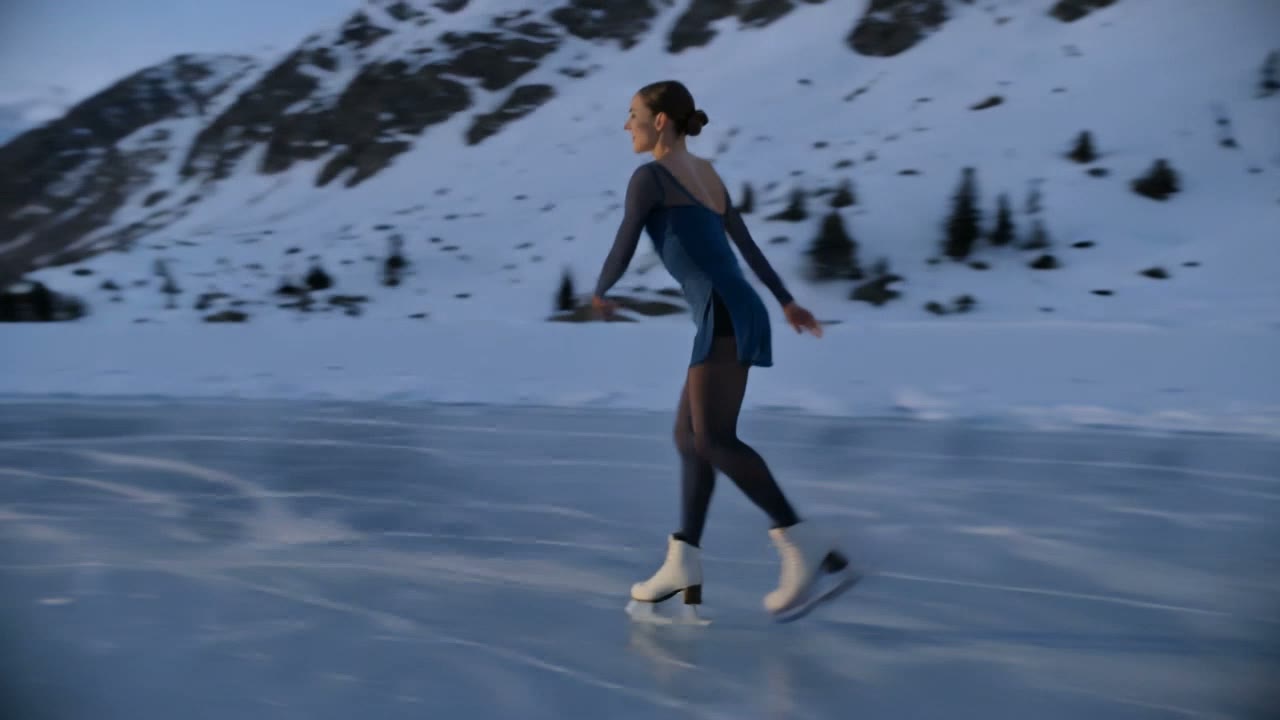
Try this promptA woman figure skater in a dark blue outfit glides across a frozen mountain lake at dusk and spins into a fast pirouette, ice shavings spraying from her blades, snowy peaks behind her.
Kling V3 · 5 seconds · 720p · 16:9
How to make a Twitch clip
Three steps. It works on your phone too.
Step 1
Type your idea
Say what you want to see. Or add a photo to start from.
Step 2
Pick 16:9
Set Aspect Ratio to wide 16:9 and pick a length. The price shows on the button.
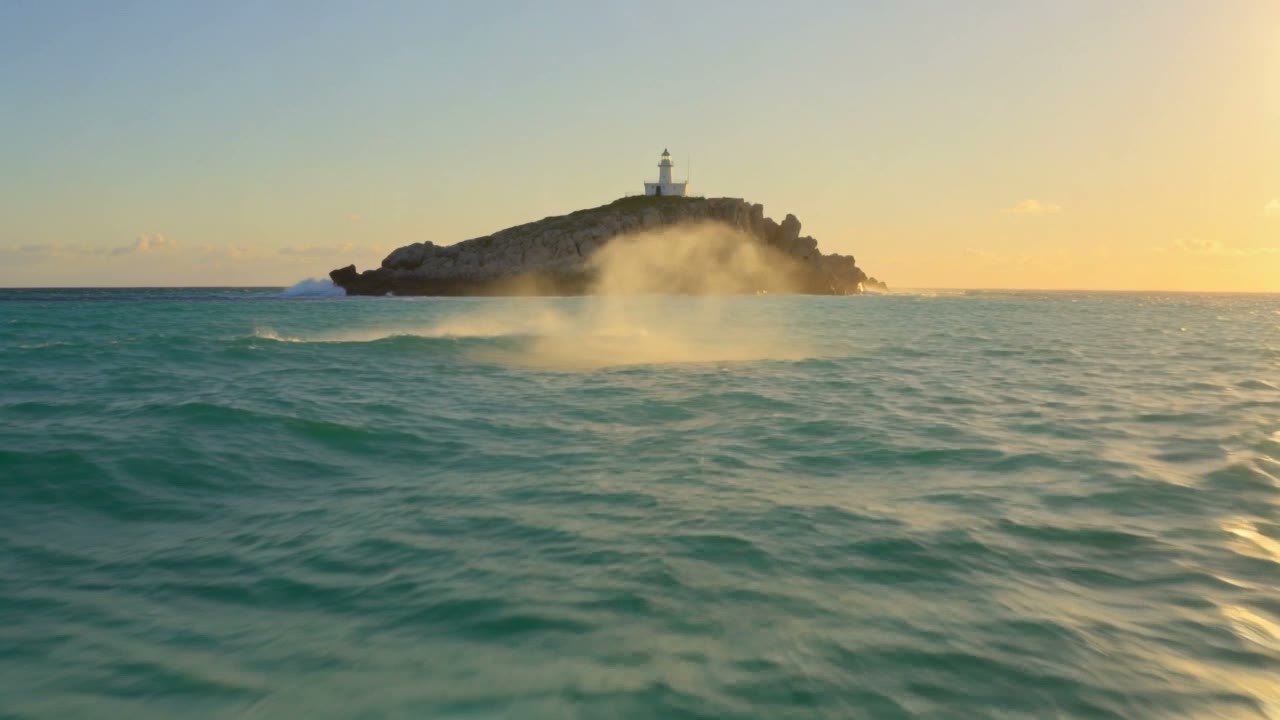
Step 3
Download your video
Most videos are ready in a few minutes. No watermark is added.
Pick the right shape
Twitch is wide 16:9, so clips fill your scene. Make a tall 9:16 version to share a moment on TikTok, Reels or Shorts.
- 9:16
Tall
TikTok, Reels, Shorts, Snapchat, Facebook Reels
- 1:1
Square
Feed posts on Instagram, Facebook and LinkedIn
- 16:9
WideTwitch
YouTube, Twitch, Kick, websites and B roll
How to write a good video prompt
This prompt made the clip next to it. Each colour is one part.
The prompt
A red fox trots through fresh snow in a quiet birch forest while snowflakes fall, the camera tracks alongside it at ground level, soft blue winter light.
- SubjectWho or what the video is about.
- ActionWhat it does. One clear action.
- SceneWhere it happens.
- CameraHow the camera moves. Pick one move.
- LightThe light sets the mood.
Good video models to start with
Each price is for one 5 second clip. Longer or sharper clips cost more.
LTX Video 2 19B$0.16
9:16, 16:9 · up to 20 seconds
Pixverse V6$0.45
9:16, 1:1, 16:9 · up to 15 seconds · sound if you want it
WAN 3.0$0.63
9:16, 1:1, 16:9 · up to 30 seconds · sound on
MiniMax H3 Max$0.80
9:16, 1:1, 16:9 · up to 15 seconds
Kling V3$0.84
9:16, 1:1, 16:9 · up to 15 seconds · sound if you want it
Seedance 2.5$2.57
9:16, 1:1, 16:9 · up to 30 seconds · sound on
| Model | 5 seconds | Shapes | Longest clip | Sound |
|---|---|---|---|---|
| LTX Video 2 19B | $0.16 | 9:16, 16:9 | 20 seconds | Not listed |
| Pixverse V6 | $0.45 | 9:16, 1:1, 16:9 | 15 seconds | You choose |
| WAN 3.0 | $0.63 | 9:16, 1:1, 16:9 | 30 seconds | Yes |
| MiniMax H3 Max | $0.80 | 9:16, 1:1, 16:9 | 15 seconds | Not listed |
| Kling V3 | $0.84 | 9:16, 1:1, 16:9 | 15 seconds | You choose |
| Seedance 2.5 | $2.57 | 9:16, 1:1, 16:9 | 30 seconds | Yes |
- 5 seconds
- $0.16
- Shapes
- 9:16, 16:9
- Longest clip
- 20 seconds
- Sound
- Not listed
- 5 seconds
- $0.45
- Shapes
- 9:16, 1:1, 16:9
- Longest clip
- 15 seconds
- Sound
- You choose
- 5 seconds
- $0.63
- Shapes
- 9:16, 1:1, 16:9
- Longest clip
- 30 seconds
- Sound
- Yes
- 5 seconds
- $0.80
- Shapes
- 9:16, 1:1, 16:9
- Longest clip
- 15 seconds
- Sound
- Not listed
- 5 seconds
- $0.84
- Shapes
- 9:16, 1:1, 16:9
- Longest clip
- 15 seconds
- Sound
- You choose
- 5 seconds
- $2.57
- Shapes
- 9:16, 1:1, 16:9
- Longest clip
- 30 seconds
- Sound
- Yes
How much does it cost?
You pay for each video from your wallet. You see the price before you start.
One 5 second clip, from
$0.16a clip
On LTX Video 2 19B at 720p. Bigger models cost more.
Free tokens when you sign up
Use them on the image tools. Videos are paid from your wallet. No card needed to sign up.
Sign up freeAdd money to your wallet
$5to start
Pay only for the videos you make. No subscription. For image tools, plans start at $19, paid one time.
See plansPrice shown before you startMoney back if a video failsVideos kept for 15 days
Twitch clip tips
What is a Twitch clip generator?
It is a tool that turns a short description or a picture into a wide video clip for streaming. You describe the moment, pick a model and download an MP4. Make intros, transitions, starting soon and BRB screens, highlight B roll and sponsor spots with no camera.
Ways streamers use AI clips
- An intro that plays the second you go live
- Calm looping starting soon, BRB and ending screens
- Short glitch, swipe or zoom scene transitions
- B roll around your best moments in recap videos
- A short branded clip for a sponsor read
- A tall cut of a moment for TikTok, Reels and Shorts
Tips for better Twitch clips
- Name the mood and the motion, like neon, glitch or calm loop.
- Keep intros and transitions to 5 to 10 seconds.
- For loops, add the same photo as the start and the end.
- Make two or three versions and keep the best.
Twitch clip formats
- Wide 16:9 for stream scenes and full screen moments.
- You download an MP4. Add it in OBS or Streamlabs as a media source.
- No watermark and no platform badge.
- Want it sharper? The video upscaler goes up to 4K.
More video tools
- Reels
Turn photos and music into a Reel
- Text to video
Turn a few words into a video
- Image to video
Make a photo move
- Upscale video
Make a soft clip sharp, up to 4K

TikTok video generatorReels generatorShorts generatorShort video generator15 second video generator30 second video generator
Questions people ask
What is a Twitch clip generator AI?
It turns a text prompt or a picture into a video clip sized for Twitch. Enhance AI has all the top video models in one place, so you can make stream intros, transitions, BRB loops, highlight B roll and sponsor spots without filming. You download a plain MP4 with no watermark.
What aspect ratio and length work best on Twitch?
Twitch is wide, so 16:9 fits your scenes and overlays. Many models also make tall 9:16 and square 1:1 for TikTok, Reels or Shorts. Keep intros and transitions to about 5 to 10 seconds so they do not slow the stream.
Can I make stream intros, transitions, and BRB screens?
Yes. Describe what you want, like a neon intro or a calm looping BRB scene, and the model makes it. Then add the MP4 in OBS or Streamlabs as a media source.
Can I animate my existing overlays, emotes, or thumbnails?
Yes. Add your overlay, mascot or thumbnail as a photo in the studio and say what should move, like glowing edges, a zoom or a bounce. Your picture becomes the first frame.
Is it free?
No. Each video is paid from your wallet, and the Generate button shows the price before you start. New accounts get free tokens, but those are for the image, music and speech tools, not video. There is no subscription.
Are there watermarks?
No. Enhance AI does not add a watermark or a logo. You download a plain MP4, ready for your scene or your channel.
Can I use the clips commercially?
Yes. You own the clips you make and can use them for personal or commercial work, like sponsored segments, ads and client work. You are also responsible for what you upload and make.
Does the video include sound?
Some models make sound with the picture, like WAN 3.0 and Seedance 2.5. You can also mute a clip and play your own music or voice over it in your streaming software.
Do I need editing software or a powerful PC?
No. Everything runs in your browser, so nothing renders on your computer. Type a prompt or add a picture, press Generate and download.
How long does a clip take to generate?
Most clips are ready in a few minutes. It depends on the model and the length. You can make up to 10 clips at the same time and keep the best one.
Make your first Twitch clip
Type an idea, pick a model and see the price before you start.
Make a video- Top video models in one place
- No app needed
- No watermark