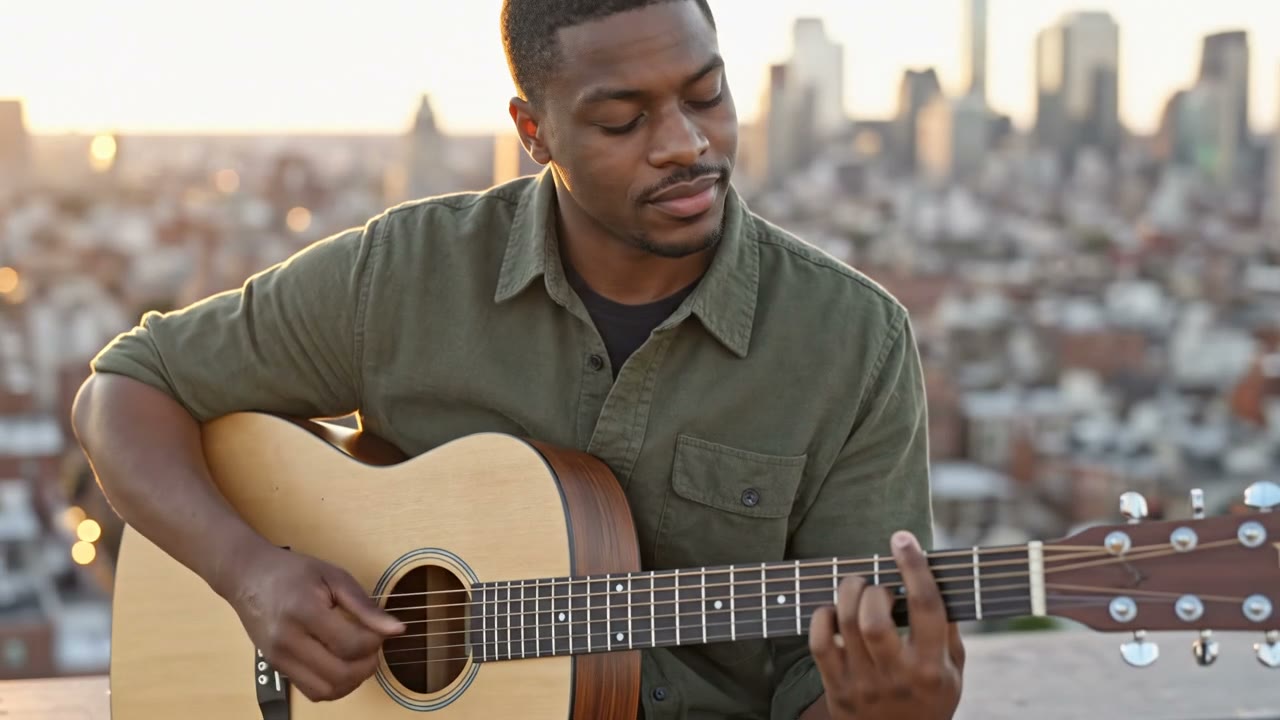
The man from the reference image plays a plain wooden acoustic guitar on a rooftop at golden hour, eyes half closed as he strums, the city softly blurred behind him, slow push in.
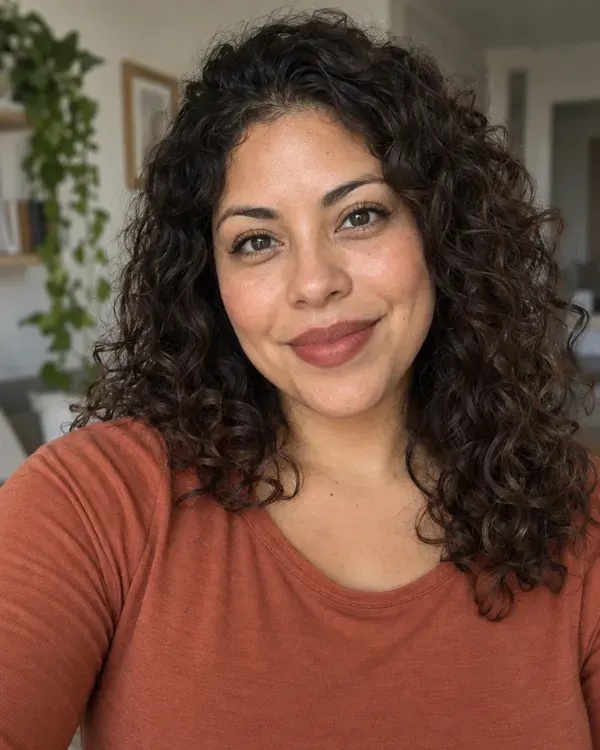
The woman in Image 1 cooks in a bright home kitchen, tossing sliced vegetables in a pan as steam rises, then tastes from a wooden spoon and smiles, warm window light.
Step 2
Write what should happen
One or two lines about what moves and how the camera moves.
WAN 3.0 Reference
Step 3
Get your video
Pick a model, check the price and press Generate.
See photos turned into videos
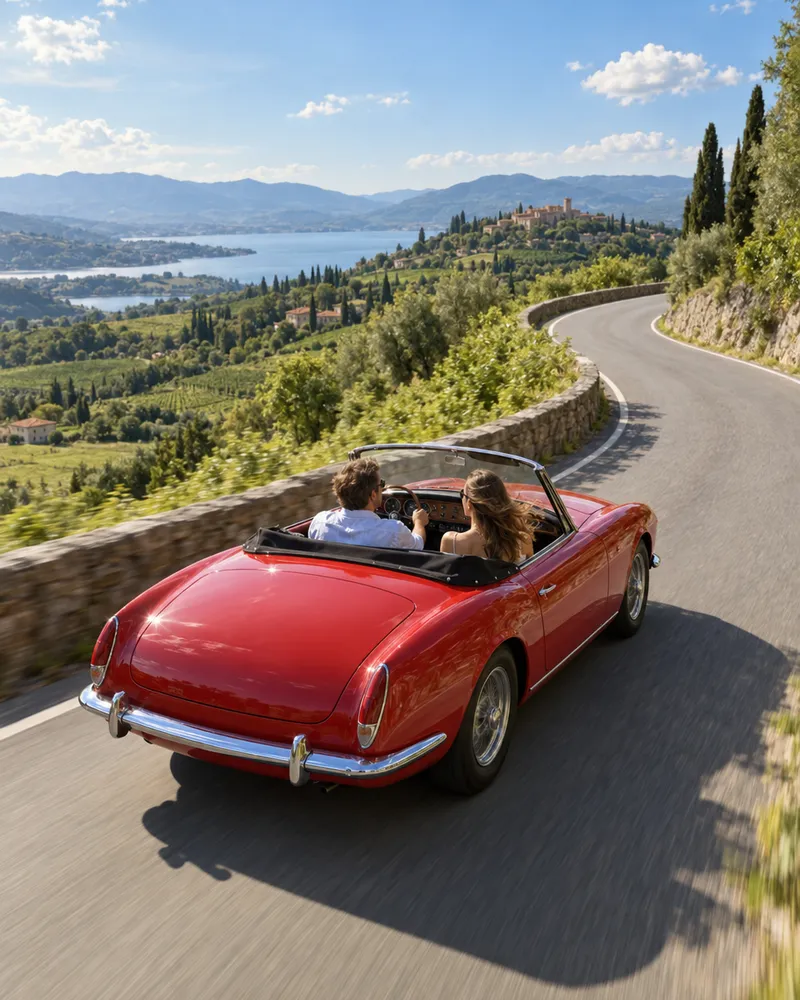
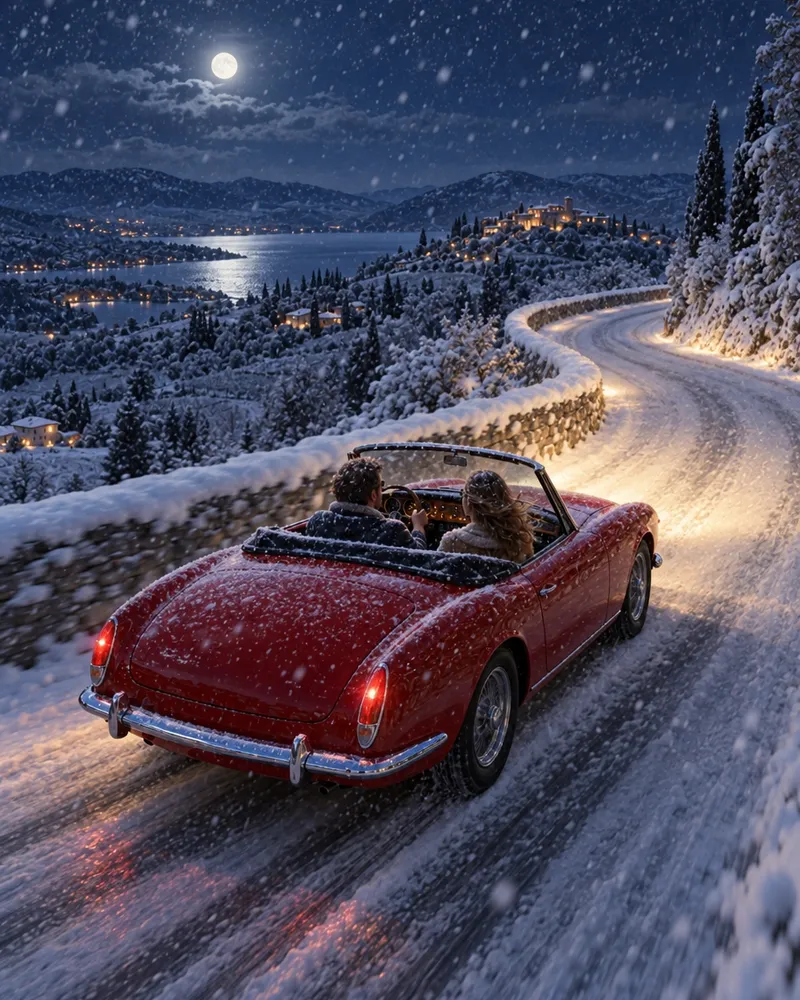
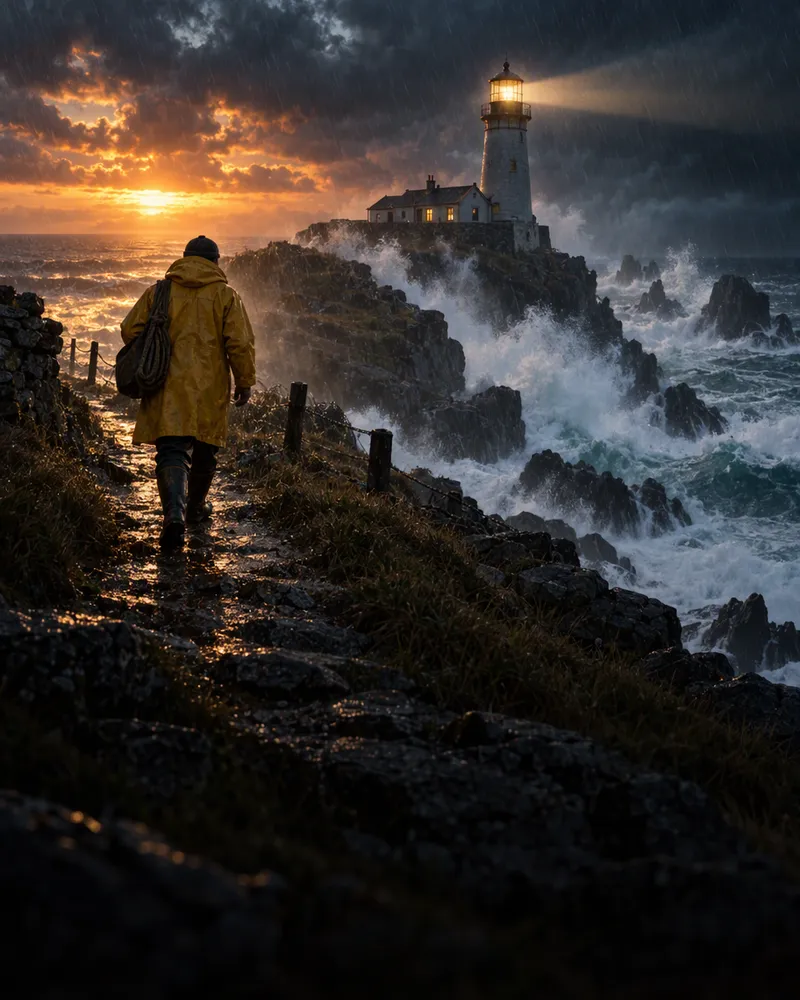
Each video was made from the photo in the circle. Tap Try this prompt to use the same words.
Veo 3.1 Reference
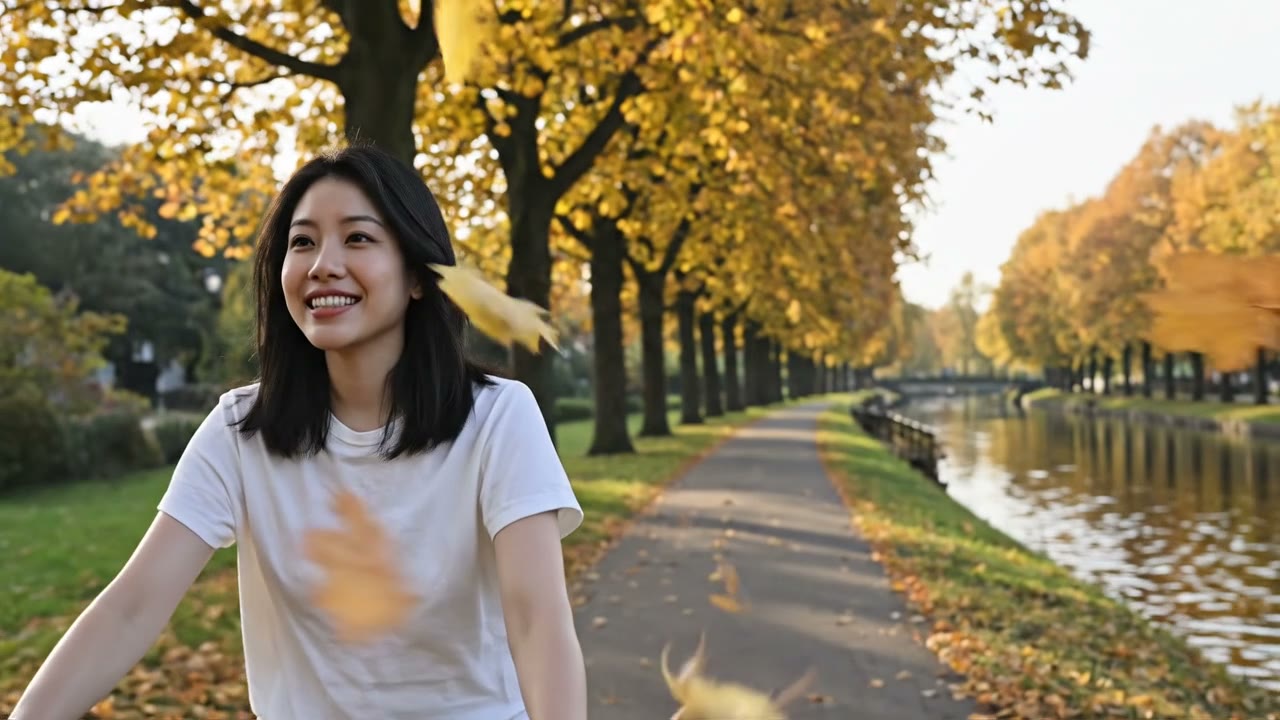
A bike ride by the canal
“The woman from the reference image rides a bicycle along a quiet canal path in autumn as golden leaves drift down around her, the camera tracks beside her and she smiles.”
“The woman in Image 1 walks through a tulip field at golden hour holding a bunch of yellow tulips, then turns toward the camera and smiles, smooth tracking shot.”
“The man in Image 1 throws a red ball along a sandy beach and the golden retriever in Image 2 races after it through the shallow waves, bright morning light, handheld camera.”
“The two women from the reference images sit at a small garden table sharing tea, laughing as they talk, dappled afternoon sun through the leaves, gentle handheld camera.”
One real prompt from this page, split into its parts.
The prompt
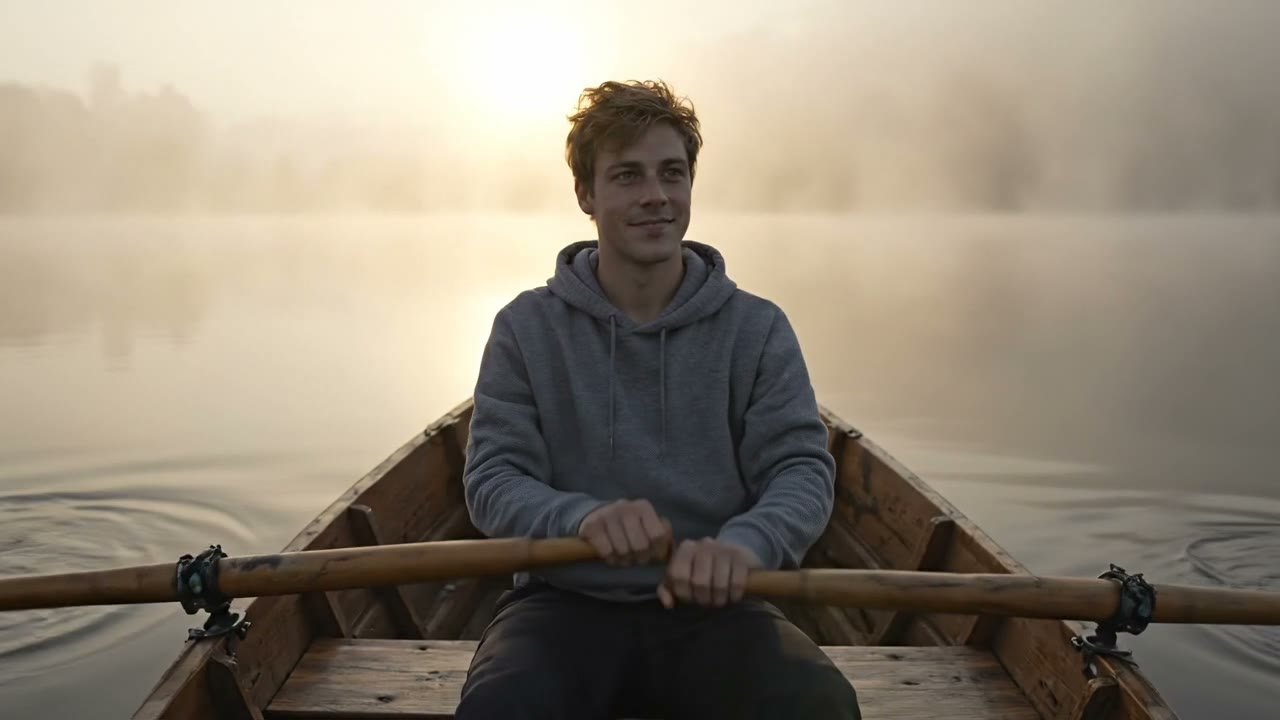
The man from the reference image rows a small wooden boat across a misty lake at dawn, oars dipping into still water, the camera slowly circles the boat.
Upload the photo, write one line about what should move, and the AI makes a short clip from it. On Enhance AI, open the video studio, choose Generate, then Image to video, and upload your photo. Write what should move and what the camera should do. Pick a model, a length and a quality, check the price on the Generate button, and press it. The video shows up in your history, ready to download. It all works in your browser, on a phone or a computer, so there is no app to install.
Is image to video AI free on Enhance AI?
No. Video is paid per clip from your wallet, and a new account starts with an empty wallet, so there are no free videos. Top ups start at $5 and you do not need a plan. The free tokens you get when you sign up (no card needed) work on any image model, so you can use them to make the photo you want to animate. Plans start at $19, paid one time, and yearly plans are 20% off. Plans add tokens for image tools. Video always comes from the wallet.
How much does one video cost?
It depends on the model, the length, the quality and, on some models, sound. On 18 October 2026 a clip cost $0.40 for 4 seconds at 720p on Veo 3.1 Lite, $0.45 for 5 seconds at 720p on Pixverse V6, $0.56 for 5 seconds on Runway Gen4 Turbo, $3.60 for 5 seconds at 720p on Seedance 2.5 and $5.33 for 8 seconds at 1080p with sound on Veo 3.1. The same Veo 3.1 clip without sound was $3.20. The biggest clip, 30 seconds at 4K on Seedance 2.5, was $67.50. The Generate button shows the price before you press it, and nothing is charged until you do.
How do I make it look like a film?
Write the camera move in your prompt, in plain words, after what should happen. For example: a slow push in, a tracking shot, a slow orbit around the subject, a handheld camera or slow motion. You can also try a pan, a tilt, a zoom out or a drone shot. Gentle moves keep faces steady, and big, fast moves make the AI invent parts the photo never showed. The AI does not follow the camera words every time, so test a short, low quality clip first.
What is the difference between Image to video and Reference?
Image to video uses your photo as the first frame, so the video starts exactly like your photo and then moves. Reference keeps the person, pet or thing from your photos and puts them in a new scene that you describe. You can add more than one photo, up to 10 on WAN 3.0 Reference. Both are in the video studio: Image to video is on the Generate tab, and Reference has its own tab.Video from reference photos
Which models made the videos on this page?
Veo 3.1 Reference made the 8 second clips at 720p, and WAN 3.0 Reference made the 5 second clips at 480p. Each one started from the photo shown with it. On 18 October 2026 an 8 second Veo 3.1 Reference clip at 720p cost $3.20 without sound or $5.33 with sound, and a 5 second WAN 3.0 Reference clip at 480p cost $0.31. Tap Try this prompt next to any clip to open the studio with the same model and words.Veo 3.1 ReferenceWAN 3.0 Reference
How long can the video be, and how sharp?
It depends on the model. Veo 3.1 makes 4, 6 or 8 second clips, Kling V3.0 Pro makes 3 to 15 seconds, and Seedance 2.5 and WAN 3.0 go up to 30 seconds in one go. For quality, Seedance 2.5 goes from 480p to 4K, Veo 3.1 from 720p to 4K and Pixverse V6 from 360p to 1080p. Some models, like Kling V3.0 Pro and Runway Gen4 Turbo, have no quality setting. Need it longer? Pick a finished clip and choose Extend, and the model carries on from where it ends. Need it sharper? The video upscaler takes a clip to 1080p, 2K or 4K.Video upscaler
How long does it take?
It depends on the model. When a model has enough finished jobs to measure, the studio shows its usual wait under the Generate button. In September 2026 that was about 1 minute for WAN 2.7, about 1 minute (up to 2) for Pixverse V6, about 3 minutes (up to 6) for WAN 3.0 and about 5 minutes (up to 11) for Seedance 2.5. You can leave the page while it works. The video waits in your history.
Will the face stay the same?
Mostly. With Image to video the first frame is your photo, so the person starts out exactly as they look in it. In a longer clip small changes can creep in, most of all with big head turns or camera moves. Keep clips short and the motion gentle when a face matters. If a person must look the same across several clips, the Reference tab makes each clip from your photos instead of one first frame.
What kind of photo works best?
A sharp, bright photo with one clear subject, like a person, a pet, a product or a view. Simple motion works best: hair in the wind, water, steam, drifting clouds, a slow zoom in. Short clips hold together better than long ones. Things that often go wrong: text and logos in the photo can smear, big camera moves make the AI invent parts the photo never showed, and crowds or busy patterns break up first.
Can I animate an old photo?
Yes. Scan the print or take a photo of it, and upload it like any other image. Old photos are often soft and faded, so it helps to run them through the AI image enhancer first. It works with no account for up to 3 photos a day. Gentle motion, like a slow zoom or a small turn of the head, looks best on old photos.AI image enhancer
What if a video fails, or I do not like it?
If a video fails, the money goes back to your wallet on its own. A video that finishes is charged even if the motion is not what you wanted. So test a new photo or prompt as a short, low quality clip first, then make the long or 4K one.
Can I use the videos, and how long are they kept?
Yes. You own the videos you make and can use them for personal or commercial work, like ads, client work and products you sell. You must own the photos you upload, or have permission to use them. Section 6 of the Terms has the full wording. Enhance AI does not add a watermark to your videos. Finished videos are deleted after 15 days, so download the ones you want to keep.Read the Terms
Turn your photo into a video
Upload a photo, write what should happen and see the price before you pay.