Image to Layers
Split any image into
layers you can edit.
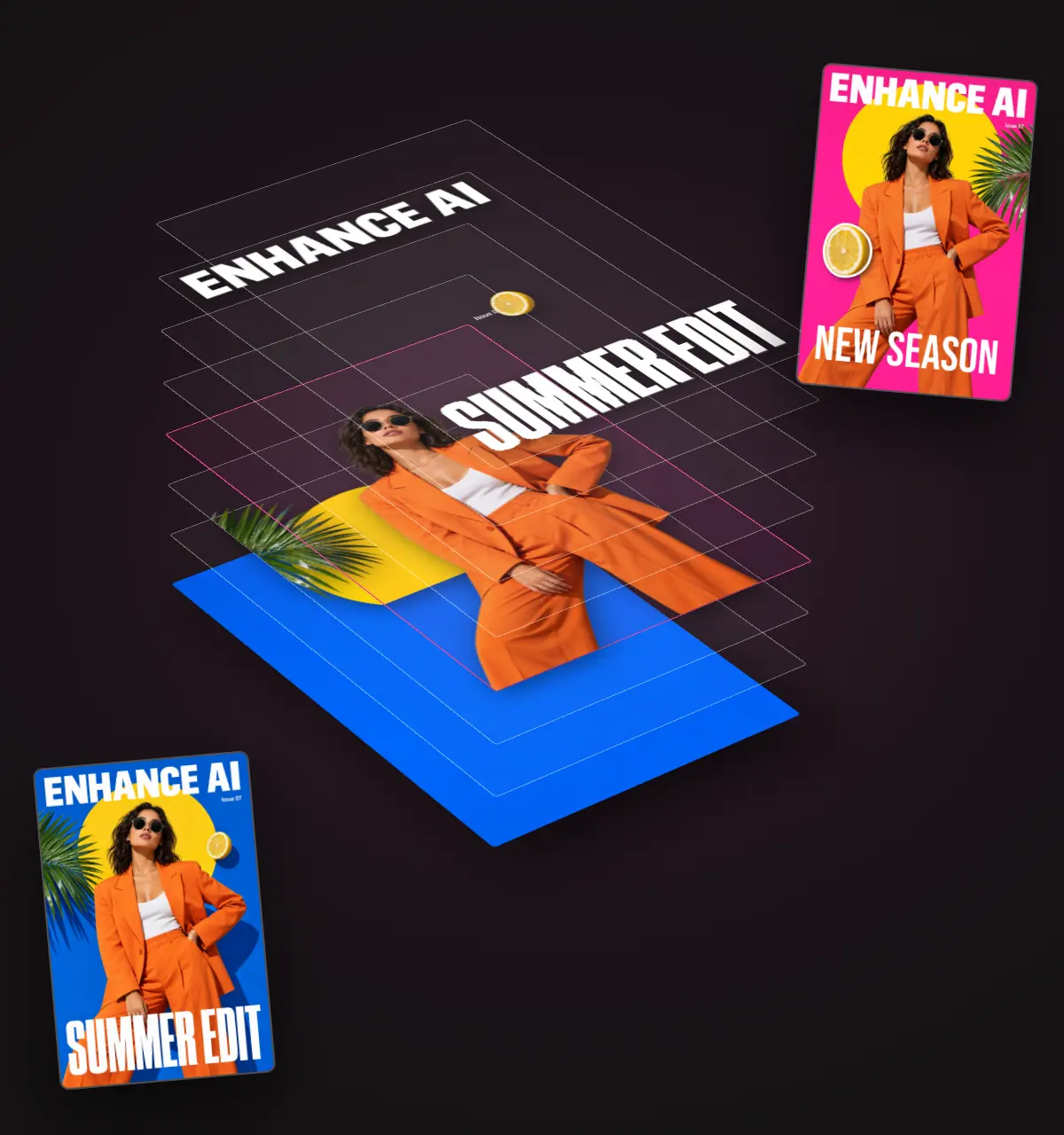
A clean background plus up to 16 layers, each back in its spot.
Upload a poster, flyer, product shot or AI image. The AI separates every part into its own layer and fills in the space behind it, and Enhance AI puts each piece back in the same spot and size. Move, resize and restyle any layer for free, then download a PNG, or a PSD with every layer kept.
01 · Live demo
Try it: a real image split into layers
This is the actual split of the poster above: a filled in background and 7 layers.
Summer edit poster1664 x 2496


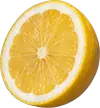

Drag a layer on the poster to move it. Use the eye to hide it and see the filled in background.
- What came back
- Background plus 7 layers
- Split time
- About a minute and a half
- Cost
- 115 tokens
02 · How it works
How to split an image into layers
Three steps in the image editor, all in your browser.
- Step 1
Upload
Open the AI image editor and upload a poster, flyer, product shot or AI image, up to 10MB.
- Step 2
Split
Open Layers, pick Flash or Pro, and press Split into layers. Flash costs 115 tokens and takes about a minute and a half. Pro costs 185 tokens, takes about two minutes and gives finer layers.
- Step 3
Edit
Move, restyle or replace any layer, then download the design as a PNG, JPG or WebP, or as a PSD with every layer kept.
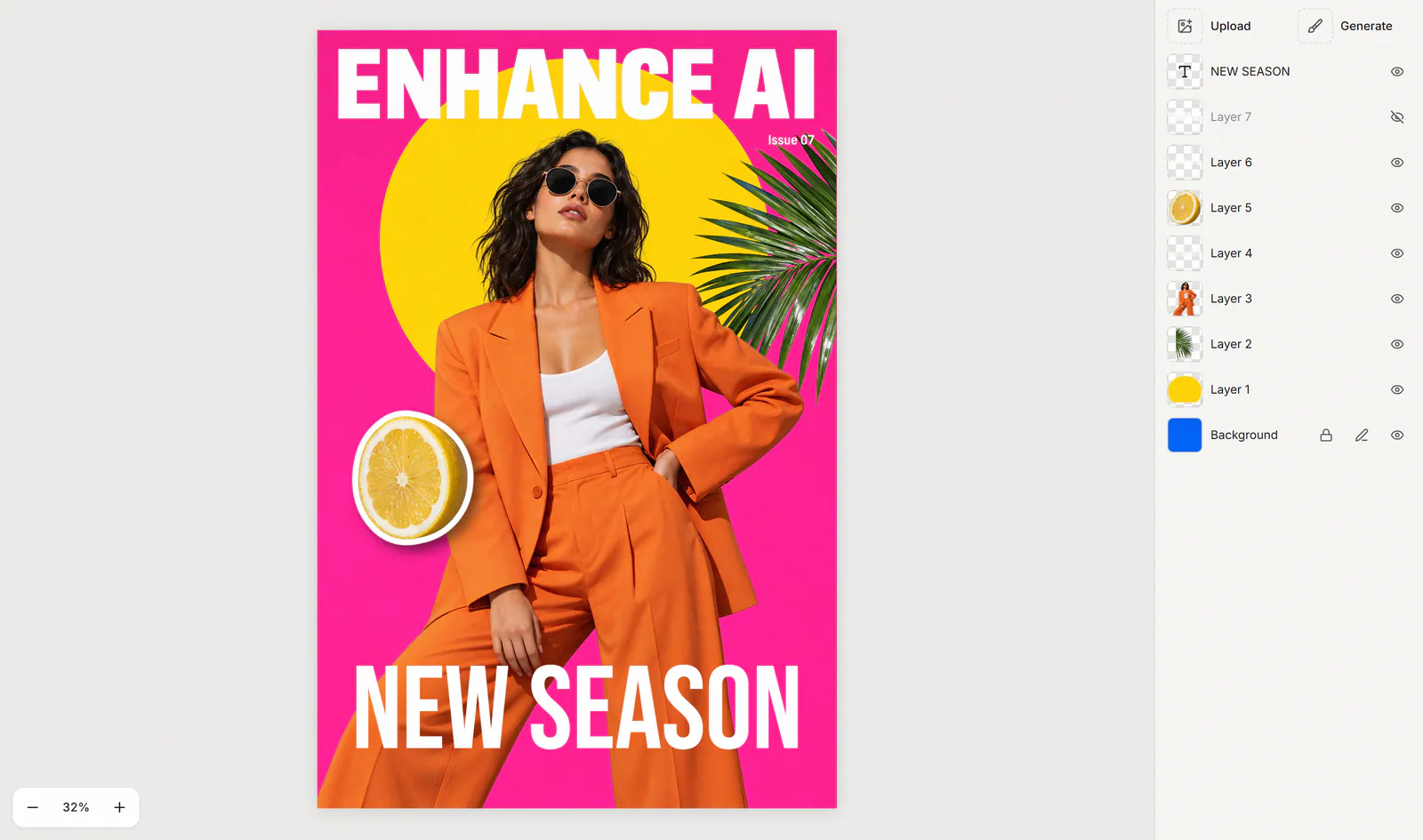
Why the layers line up
Each piece goes back to its spot
- 01
The AI returns every piece cut out on its own and redrawn larger, with no position.
- 02
Enhance AI compares each piece with your original to find its spot and size, and works out which one sits in front where two overlap.
- 03
If a piece lands off, drag it or type its X and Y. Anything it cannot place starts in the middle of the canvas.
03 · Features
Edit each layer on its own
Pick any layer and change it on its own. Moving and restyling are free, and AI edits cost a few tokens.
- Drag, resize, rotate or flip any layer
- Snap guides to the canvas center and to other layers
- Type an exact X, Y, width, height and angle
- Hide, lock, rename, duplicate or drag rows to reorder
Cost: Free
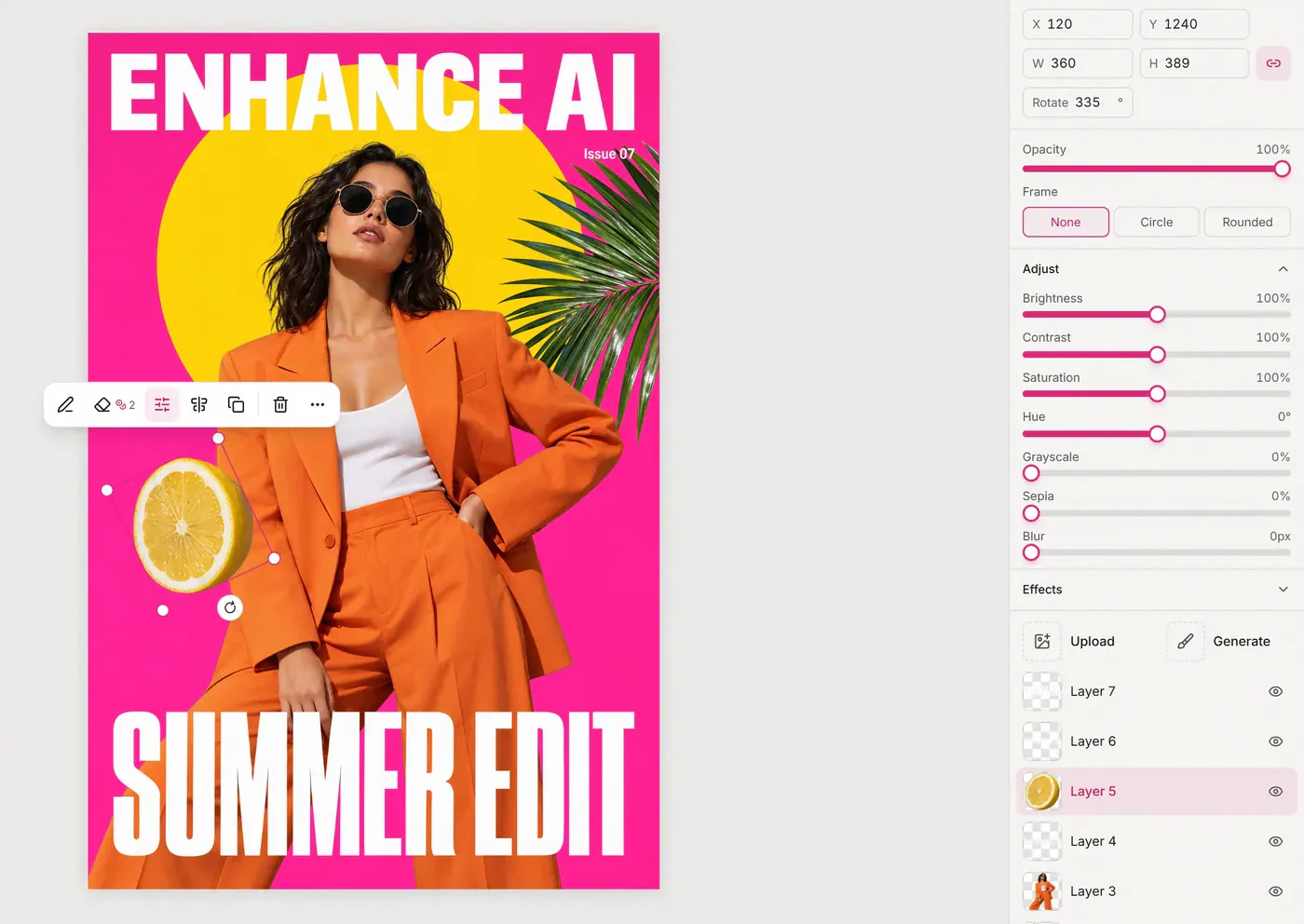
The lemon layer: bigger and turned to 335 degrees, with its X, Y, size and angle in the sidebar.
- 14 fonts, including Bebas Neue, Oswald, Montserrat, Playfair Display and Pacifico
- Letter spacing, curved text and gradient fill
- Outline, shadow and glow
- To retype a headline, hide the old layer and add new text
Cost: Free
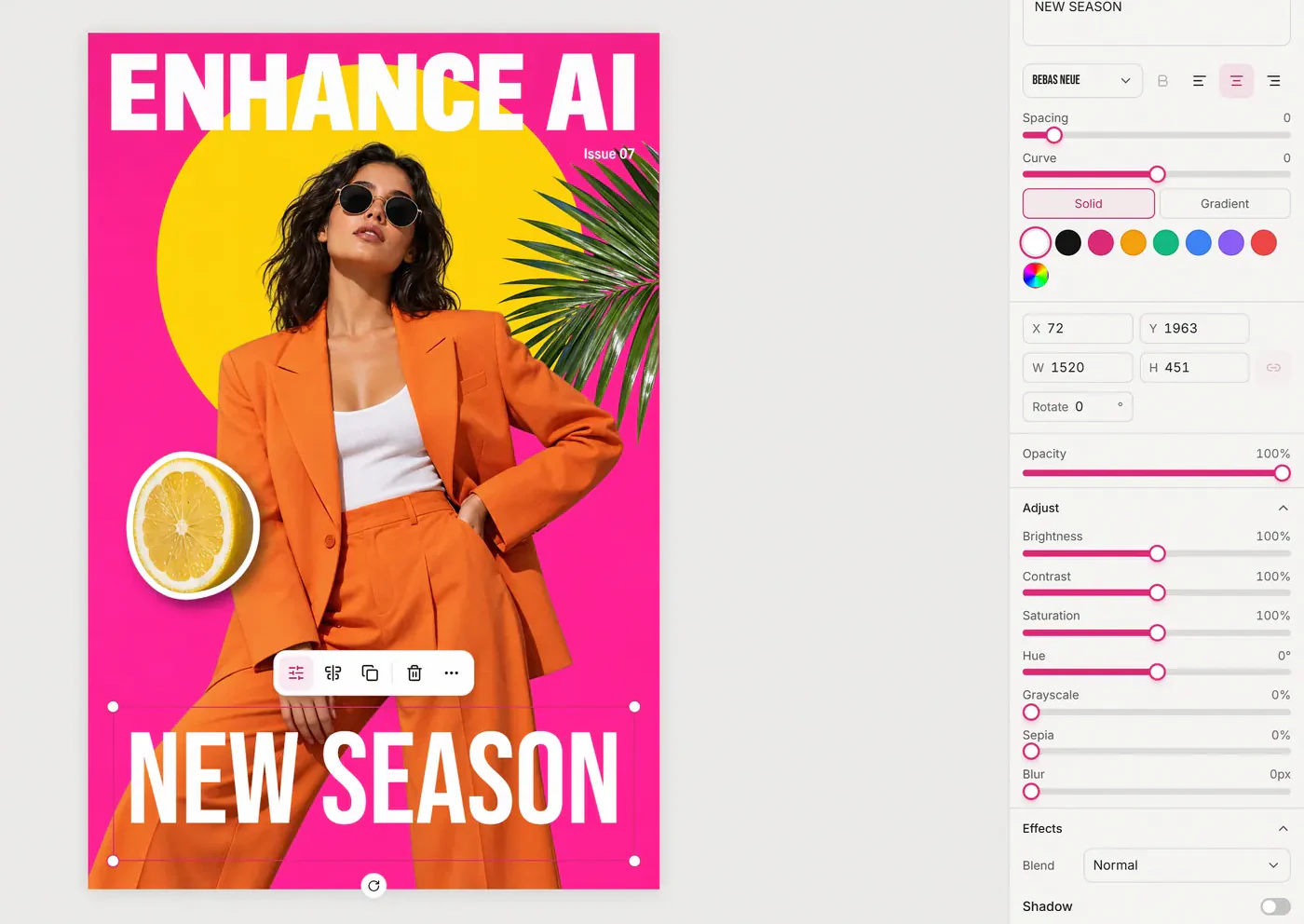
NEW SEASON, a Bebas Neue text layer, in place of the old headline.
- Shadow, glow and a sticker style outline
- Blend modes such as Multiply and Screen
- Brightness, contrast, saturation, hue, grayscale, sepia and blur
- Opacity, and a circle or rounded frame
Cost: Free
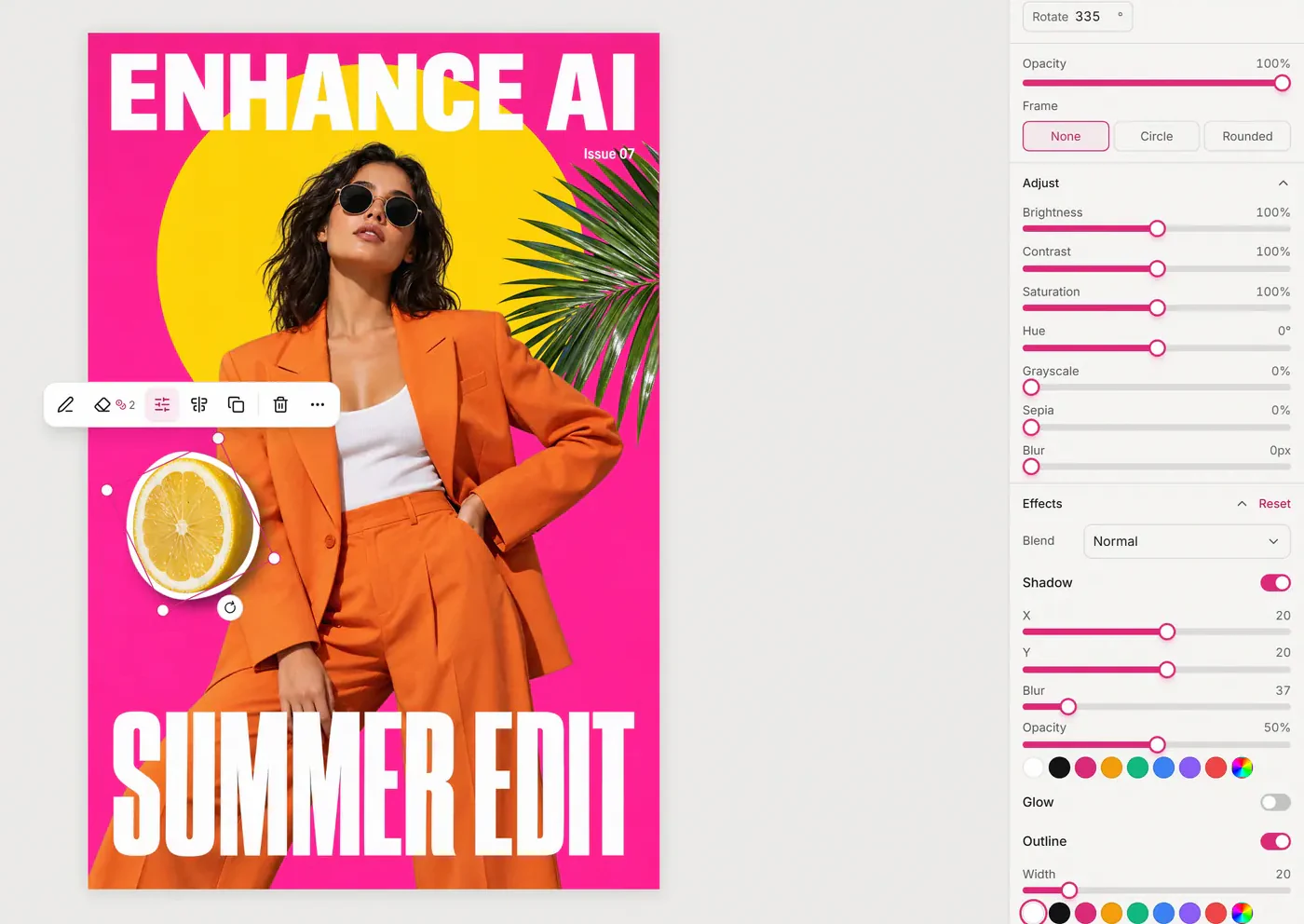
Shadow and a white outline on the lemon, set in the Effects panel.
- Seven edit models, from Qwen Image 2 to GPT Image 2 Edit
- The result lands as a new layer above the original, which is hidden, not deleted
- Remove one layer's background for 2 tokens
- Failed edits are refunded
Cost: 9 to 22 tokens
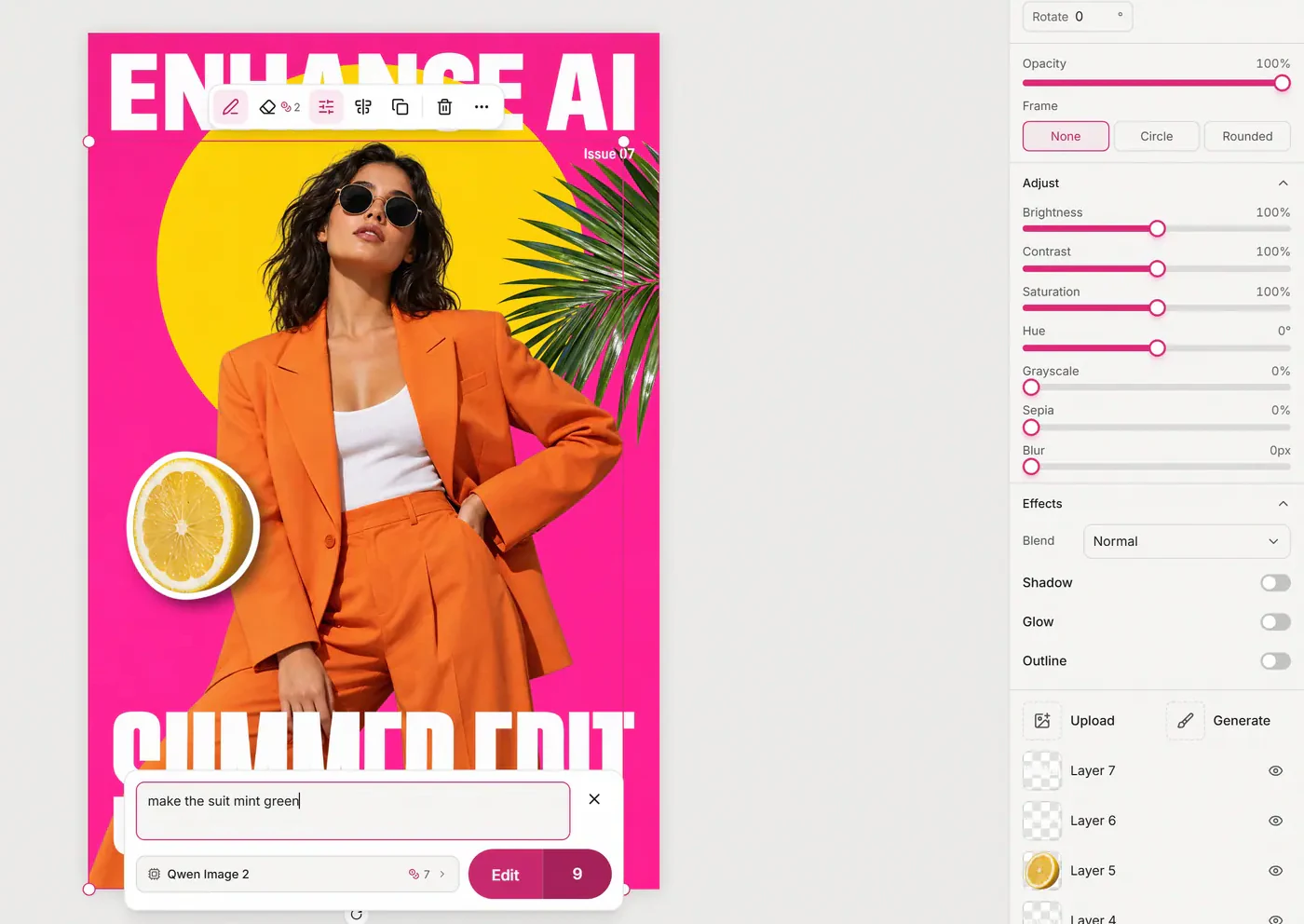
One prompt on the model layer only: make the suit mint green, 9 tokens.
- Describe the layer and pick an image model, as in the AI image generator
- Remove background is on by default, so it arrives cut out
- Or add your own image: upload, drag and drop, or paste
- It lands as a new layer you can move, resize and restyle
Cost: The model's price plus 2 tokens
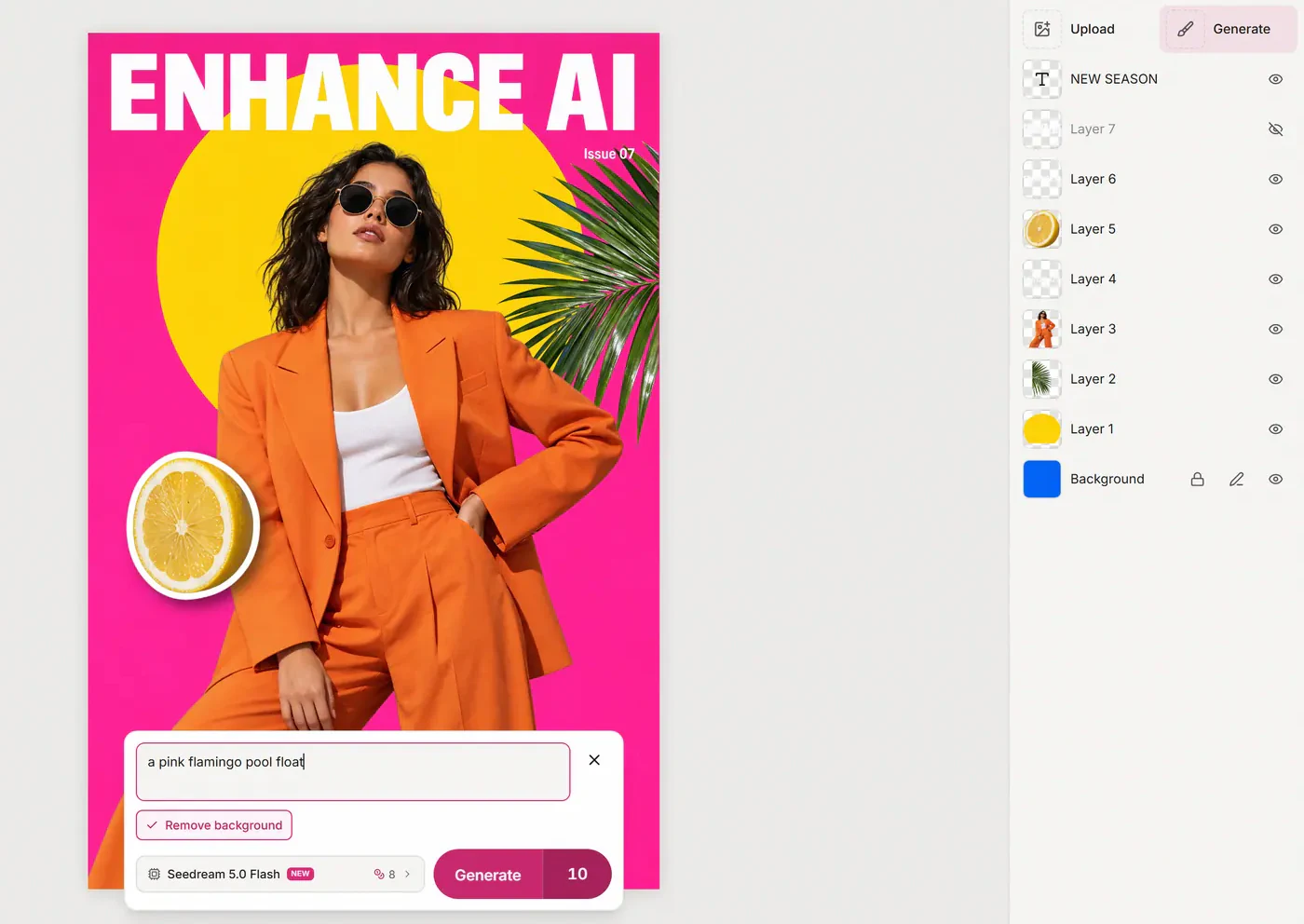
A new layer from a prompt, cut out on arrival: 8 for the model plus 2.
- Shift click, drag a box or press Ctrl+A to select several
- Align left, center, right, top, middle or bottom
- Distribute three or more layers evenly
- Press Ctrl+G to group them
Cost: Free
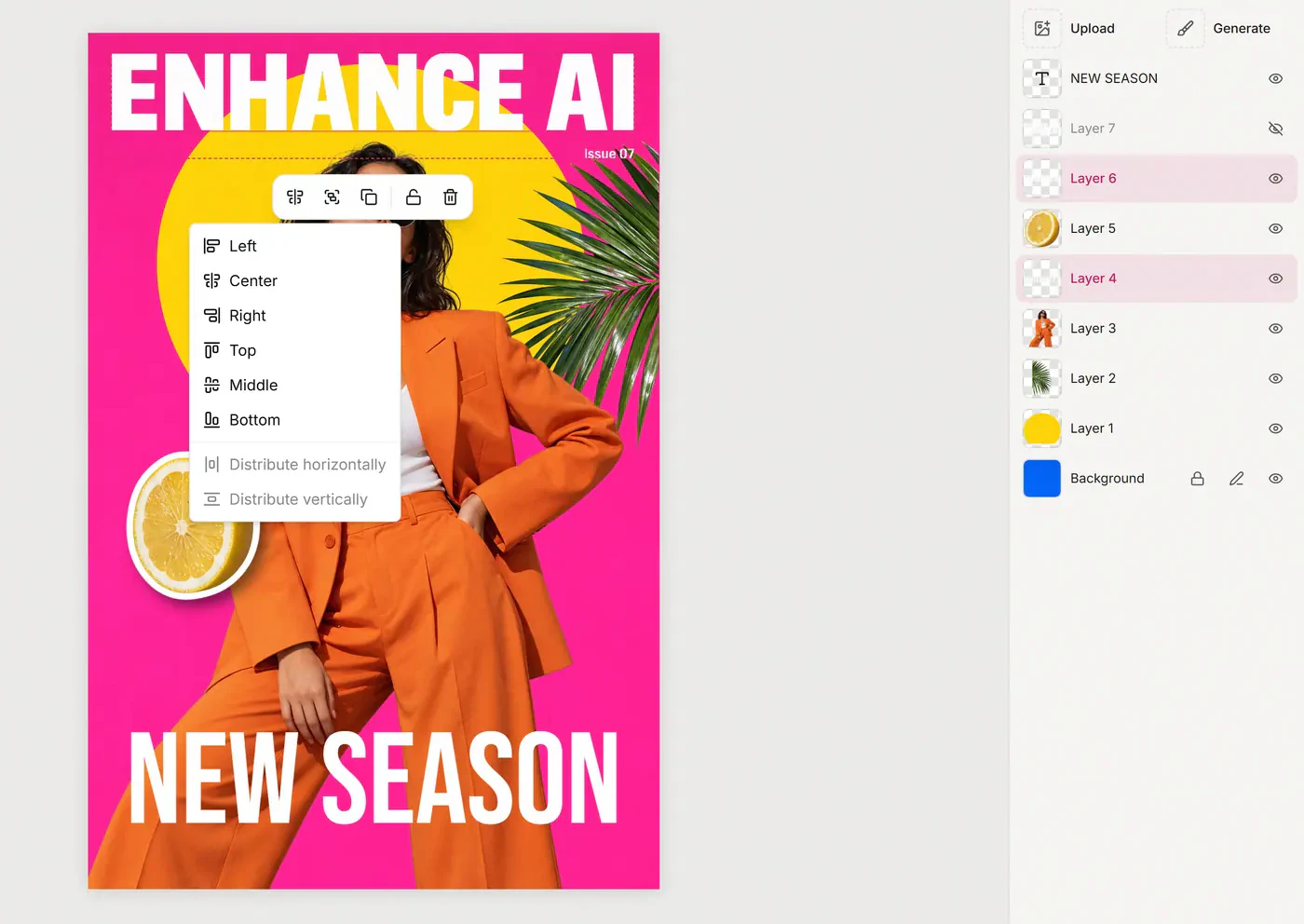
Two layers selected, with the Align menu open.
- Adjust the filled in background like any layer
- Hue, brightness, contrast, saturation, grayscale, sepia and blur
- Or edit the background with a prompt for the model's price
- Every layer on top stays where it is
Cost: Free, or 7 to 20 tokens with a prompt
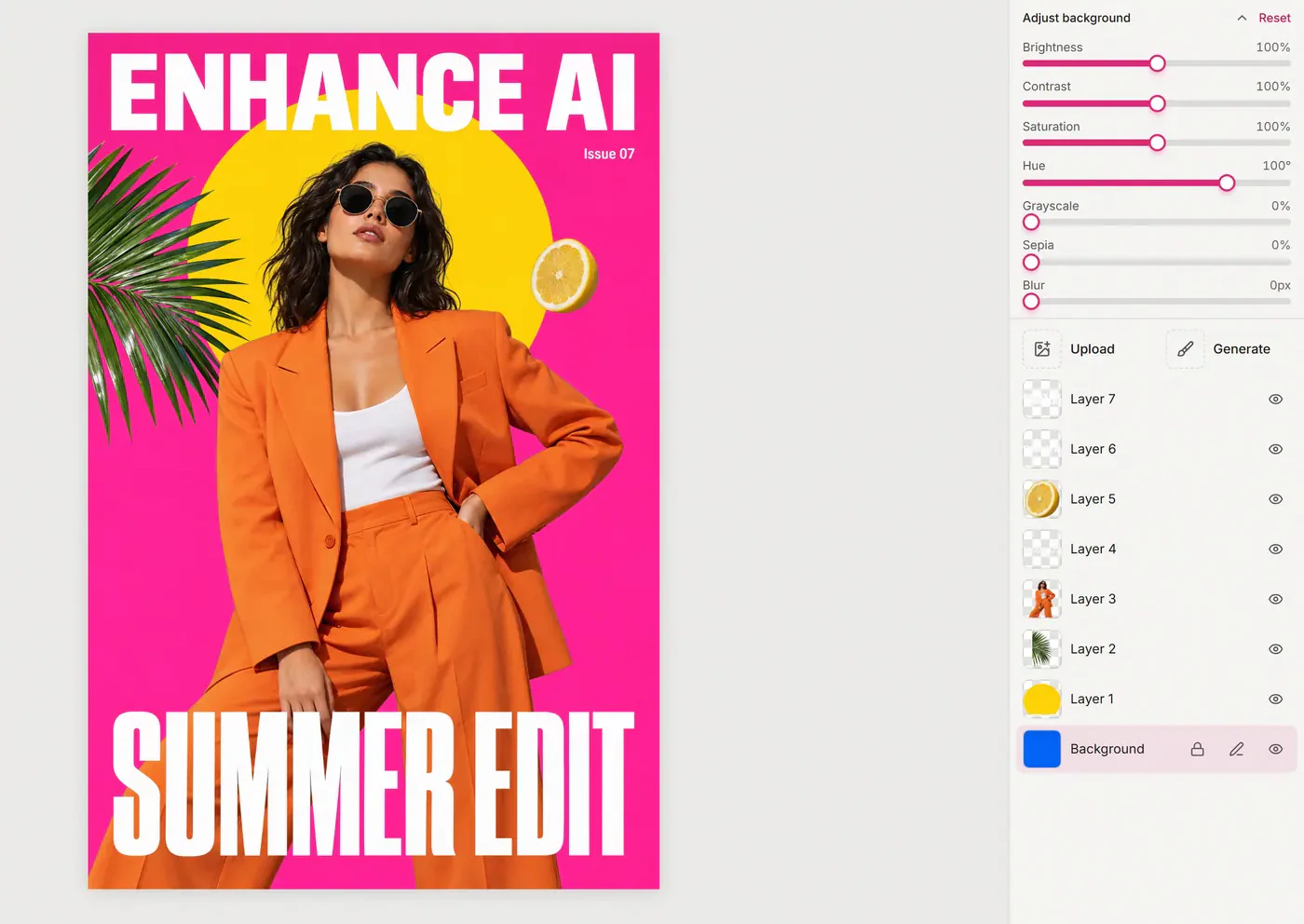
Hue at 100 turned the blue background pink. Every layer stayed put.
The lemon layer: bigger and turned to 335 degrees, with its X, Y, size and angle in the sidebar.
Also in the layer editor
Autosave
Saves about 1.5 seconds after you stop
Undo 100 steps
A whole slider drag counts as one
Open layers again
Reopen the same image and carry on, free
PNG, JPG or PSD
The whole design or just the layers you pick
Your own images
Upload up to 10MB, drop or paste
Copy between designs
Ctrl+C a layer, Ctrl+V it in another
Lock and hide
Keep a layer still or out of sight
Rename and duplicate
Name layers your way, copy any one
Reorder
Drag rows to change what sits in front
Group
Ctrl+G keeps layers together
Shapes
Rectangles, circles, lines and arrows
Back to the editor
Done flattens it into the image editor
04 · Example
Before and after:
one poster, edited from its layers
The same split, edited in the layer editor with free tools only. Drag the slider to compare.


What changed
- BackgroundHue set to 100, so blue became hot pink.
- SunMade bigger.
- Palm leafMoved to the right edge and flipped.
- LemonMoved to the left, made bigger, turned to 335 degrees, with a shadow and a white outline.
- HeadlineSUMMER EDIT hidden, NEW SEASON added as a Bebas Neue text layer.
- Model, masthead and Issue 07Left as the split returned them.
The edited poster is the editor's own PNG download.
05 · Compared
More than a background remover
A background remover cuts out one subject and leaves a hole. A split fills in the background and gives every part its own layer.
What you get
- Layers on Enhance AI
- A background plus up to 16 layers
- Background remover
- One subject, cut out
- By hand in a desktop editor
- Layers you cut out yourself
Space behind objects
- Layers on Enhance AI
- Filled in by the AI
- Background remover
- Left empty
- By hand in a desktop editor
- Patch it yourself
Overlapping objects
- Layers on Enhance AI
- Sorted into front and back
- Background remover
- Kept as one cutout
- By hand in a desktop editor
- Separate them by hand
Text in the image
- Layers on Enhance AI
- Its own layer, replace it with a Text layer
- Background remover
- Stays part of the picture
- By hand in a desktop editor
- Retype it yourself
Editing afterwards
- Layers on Enhance AI
- Move, restyle or edit any layer with AI
- Background remover
- Swap the backdrop
- By hand in a desktop editor
- Full control
Time and skill
- Layers on Enhance AI
- About a minute and a half, no skill needed
- Background remover
- Quick
- By hand in a desktop editor
- Slow, takes practice
| Layers on Enhance AI | Background remover | By hand in a desktop editor | |
|---|---|---|---|
| What you get | A background plus up to 16 layers | One subject, cut out | Layers you cut out yourself |
| Space behind objects | Filled in by the AI | Left empty | Patch it yourself |
| Overlapping objects | Sorted into front and back | Kept as one cutout | Separate them by hand |
| Text in the image | Its own layer, replace it with a Text layer | Stays part of the picture | Retype it yourself |
| Editing afterwards | Move, restyle or edit any layer with AI | Swap the backdrop | Full control |
| Time and skill | About a minute and a half, no skill needed | Quick | Slow, takes practice |
Canva Magic Layers does a similar job. Canva says it launched in March 2026 and brings text back as editable text boxes. On Enhance AI, text comes back as picture layers that you replace with a Text layer or edit with a prompt.
06 · Uses
What you can use image to layers for
For posters, flyers, ads, product shots, social graphics and AI images.
Change an offer or a date
Hide the old price or date and type a new one in the same spot.
Remove a person or object
Hide the layer and the filled in background shows. For a photo you do not want to split, remove one object instead.
Move or resize a headline
Give a title more room, or move it off a face.
Reuse a logo or product
Download one layer as a PNG, or copy it into another design.
Restyle one part with a prompt
Change a jacket color or a sky and leave the rest alone.
Fix an AI image
Keep the parts you like and edit the one that went wrong, instead of starting over.
07 · Best results
Which images split into layers best
Some pictures split more cleanly than others. Here is what to expect before you start.
Splits well
- Clear, separate partsPosters, flyers, ads, thumbnails and product shots.
- Big textHeadlines, prices, dates and web addresses.
- A subject in front of a scenePeople and objects lift off, the scene is filled in.
- Sharp, clean imagesThe cleaner the picture, the cleaner each layer.
Watch out for
- Text you want to retypeSplit text is a picture. Hide it and add a Text layer.
- Very fine detailPieces are redrawn, so tiny print can differ slightly.
- Cast shadowsNot kept in the background. Use the Shadow effect.
- The number of layersThe AI decides, up to 16 plus the background.
08 · Pricing
What it costs to split an image into layers
Image to layers is not free: each split costs 115 tokens, or 185 with Seedream 5.0 Pro. After that, moving, text, shapes, effects and downloads cost nothing.
| What you do | Tokens |
|---|---|
| Split with Seedream 5.0 FlashOpening it again is free | 115 |
| Split with Seedream 5.0 ProFiner, cleaner layers | 185 |
| Remove a layer's backgroundThe layer stays in place | 2 |
| Edit a layer with a promptThe model's 7 to 20, plus 2 to cut it out | 9 to 22 |
| Edit the background with a promptThe model's price only | 7 to 20 |
| Generate a new layerThe 2 cuts it out, on by default | Model price plus 2 |
| Move, text, shapes, effects, downloadAs often as you like | 0 |
One time plan
$19
One time, for 30 days
- 2,000 tokens
- Enough for 17 splits
- No subscription, nothing renews
Free signup tokens do not cover a split.
See the $19 one time planFailed splits and failed edits are refunded.
09 · Questions
Questions about image to layers
Price, layer count, text, downloads and how it compares.
Open the image editor, upload your image, open Layers and press Split into layers. The split takes about a minute and a half, then a few seconds to prepare the layers the first time they open.
No. A split costs 115 tokens, or 185 with Seedream 5.0 Pro, and the free signup tokens do not cover one. The $19 one time plan includes 2,000 tokens for 30 days, enough for 17 Flash splits or 10 Pro splits, and nothing renews. Moving, text, shapes, effects and downloads cost nothing, and a failed split is refunded.
The AI decides: a clean background plus up to 16 layers. Typing what you want in the What to separate box can help it focus. The poster on this page came back as a background and 7 layers.
No. A background remover cuts out one subject and leaves an empty space behind it. A split fills in the background and gives every part of the image its own layer.
The filled in background, so there is no hole. Where objects overlap, Enhance AI works out which one sits in front. Shadows cast by an object are not kept, so add your own with the Shadow effect.
Split text comes back as a picture of the words, so you can move, resize or restyle it but not retype it. To change the wording, hide that layer and add a Text layer in one of 14 fonts, or edit the layer with a prompt. That is how NEW SEASON replaced SUMMER EDIT on this page.
Enhance AI compares each piece with your original and puts it back in the same spot and size. The AI redraws every piece, so very fine detail can differ slightly. If a layer lands off, drag it into place or type its X and Y.
Posters, flyers, ads, thumbnails and product shots with big text, a clear subject and a sharp picture. Very fine detail, such as thin strokes and tiny print, can come back slightly different.
Yes. The poster on this page was made with GPT Image 2.5 and split into a background and 7 layers. It is a good way to fix one part of an AI image instead of starting over.
Yes. Pick a layer, type a prompt and choose one of seven edit models. It costs 9 to 22 tokens: the model's price plus 2 to cut the result out. The result lands as a new layer above the original, which is hidden, not deleted.
The whole design, or just the layers you select, as a PNG, JPG or WebP at the canvas size or twice it, or as a layered PSD file with every layer kept separate. A PSD keeps hidden layers, marked hidden; the picture formats leave them out. Any single layer can also be saved as its own PNG from the More menu. The poster on this page downloads at 1664 by 2496.
Canva says its Magic Layers launched in March 2026 and brings text back as editable text boxes. On Enhance AI, text comes back as picture layers, which you replace with a Text layer or edit with a prompt. For a wider look, see the Canva alternative page.
Begin
Split your first image
into layers
From 115 tokens a split. Plans from $19 one time, no subscription.
More from Enhance AI